
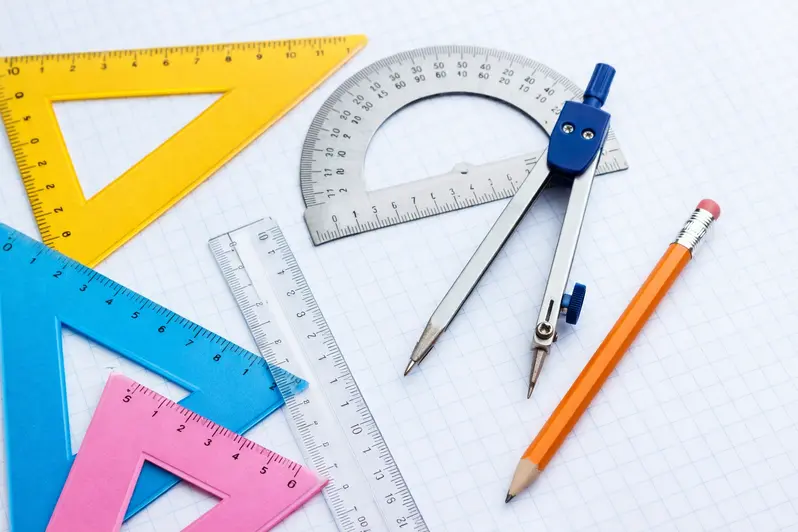
Which Geometry Tools Does Every Student Need for Their Assignments?
If you’ve ever stared at a geometry worksheet and felt the urge to “just throw a ruler at it,” you’re not alone. Geometry is a visual subject that thrives on clarity, precision, and a bit of creative thinking. Fortunately, the right tools can turn a headache-filled assignment into a smooth, almost enjoyable process. In this guide, we’ll break down the essential geometry tools—both classic and digital—that every student should have in their toolbox.
TL;DR: A ruler, a compass, a set of protractors, a high-quality graph paper, and a modern geometry app are the backbone of a solid geometry workflow. Add a CAD plug-in or dynamic geometry software if you’re tackling more advanced projects.
The Classic Foundation: Paper-based Tools
Before we dive into the digital age, let’s cover the dependable physical tools that have been trusted for generations. They’re inexpensive, universally available, and perfect for quick sketches or problem-solving on the go.
1. Quality Ruler (or a Set of Rulers)
-
Why it matters: A good ruler gives you straight lines without the jitter.
-
What to look for: Non-metallic, smooth edges, clear millimeter/centimeter markings.
-
Tip: Keep a set of both metric and imperial rulers handy for assignments that switch units.
2. Compass (Drafting Compass)
-
Why it matters: From circles to perpendicular bisectors, a compass is a geometry staple.
-
What to look for: Adjustable legs, a stable center pin, and a sharp pencil tip.
-
Practical insight: Use the compass to prove theorems about circles—like the fact that equal chords subtend equal angles.
3. Protractor (or a Set of Protractors)
-
Why it matters: Angles are the lifeblood of geometry. A protractor lets you measure and draw them accurately.
-
What to look for: Clear graduation marks in both degrees and radians, a smooth rotating arm.
-
Pro tip: For quick angle checks, you can use a digital angle finder instead of a protractor—more on that later.
4. Graph Paper
-
Why it matters: Graph paper brings structure. It’s especially useful for coordinate geometry.
-
What to look for: Consistent lines, a clearly marked grid, and a thick paper that won’t bend under weight.
-
Real-world example: When plotting a function or creating a triangle, graph paper helps keep your points in the right places.
5. Pencil, Eraser, and Ruler Pencil
-
Why they matter: A sharp, precise graphite point for clean lines and a good eraser for corrections.
-
Tip: Keep a mechanical pencil as a backup; it keeps the lead consistent and saves you from frequent sharpening.
Transitioning to Digital: Geometry Software & Apps
While paper tools are great, the digital era brings us dynamic geometry software, geometry calculators, and CAD plug-ins that can visualize concepts in ways flat paper never can. Here are the must-have digital tools that complement the classic set.
1. GeoGebra
-
What it is: GeoGebra is a free, open-source dynamic geometry platform that lets you build, animate, and explore shapes.
-
Why it’s useful: You can construct a triangle, then instantly see how changing one side affects angles and area—ideal for exploring theorems like the Law of Sines.
-
Real-world insight: Teachers often assign GeoGebra projects to demonstrate the relationship between a triangle’s side lengths and angles in real-time.
2. Desmos
-
What it is: Desmos is a powerful graphing calculator that runs in your web browser.
-
Why it’s useful: It’s perfect for coordinate-geometry assignments, such as sketching a parabola that passes through three given points.
-
Tip: Use Desmos for homework projects that involve plotting multiple equations on the same axes.
3. Sketchpad
-
What it is: An online dynamic geometry tool that’s easy to use and great for quick construction.
-
Why it’s useful: You can create circles, polygons, and more, then animate transformations like reflecting or rotating shapes.
-
Practical use: If your assignment asks you to prove a shape remains congruent under rotation, Sketchpad can illustrate that instantly.
4. AutoCAD (or a Light-Weight CAD Tool)
-
What it is: AutoCAD is a professional CAD (Computer-Aided Design) program used by architects and engineers.
-
Why it’s useful for geometry students: Advanced geometry tasks—like tessellations or design of real-world objects—benefit from CAD’s precision.
-
Tip: Many schools provide free AutoCAD Student licenses. If you’re taking advanced geometry or preparing for engineering, this is a game-changer.
Choosing the Right Tool for the Assignment
The question “Which Geometry Tools Does Every Student Need for Their Assignments?” may sound academic, but the answer is very pragmatic. Here’s how to decide what to use:
1. Identify the Assignment Type
-
Basic proofs or theorem verification? Stick to ruler, compass, protractor, and graph paper.
-
Coordinate geometry or graph plotting? Desmos or GeoGebra is a natural fit.
-
Advanced design or constructing 3-D models? AutoCAD or a CAD plug-in may be necessary.
2. Consider Your Learning Style
-
Hands-on visual learner? A physical compass and ruler will give tactile feedback.
-
Digital native? GeoGebra and Desmos can accelerate your understanding with instant visual feedback.
3. Check Availability
-
School resources? Many schools provide free access to GeoGebra, Desmos, and even AutoCAD Student licenses.
-
Home setup? A simple laptop or a tablet with a stylus can run most online geometry programs.
Real-World Examples: Geometry Tools in Action
Let’s look at a few practical scenarios where geometry tools solve real problems.
Scenario 1: Proving the Pythagorean Theorem
-
Tools Needed: Ruler, compass, protractor, and graph paper.
-
How It Works: Draw a right triangle on graph paper. Use the ruler to measure leg lengths, the compass to construct squares on each side, and the protractor to confirm right angles. The summation of the two smaller squares should equal the largest—visual proof that’s easy on the eyes.
Scenario 2: Finding the Centroid of a Triangle
-
Tools Needed: GeoGebra.
-
How It Works: Construct the triangle in GeoGebra. Use the “Centroid” feature to instantly locate the point of intersection of the medians. You can then drag vertices to see how the centroid shifts—great for understanding the concept of balance.
Scenario 3: Creating a Tessellation Design
-
Tools Needed: AutoCAD or Sketchpad.
-
How It Works: Use a CAD tool’s precise drawing features to create the basic shape. Apply reflection and rotation tools to generate a repeating pattern that covers a plane. This is useful for design coursework or even architectural floor plans.
The Bottom Line
The answer to “Which Geometry Tools Does Every Student Need for Their Assignments?” isn’t a single product; it’s a combo of reliable analog tools and powerful digital programs. With the basics (ruler, compass, protractor, graph paper) and a dynamic geometry app (GeoGebra or Desmos) in your arsenal, you’ll cover almost every geometry problem that comes your way. For those eyeing advanced projects, a CAD tool unlocks a new dimension of precision and creativity.
Soft Call-to-Action
Ready to upgrade your geometry game? Grab a sturdy pencil, a good ruler, and download GeoGebra or Desmos today. Then, try building a triangle, adjusting its vertices, and watching the angles change in real time. The mix of hands-on and digital practice will keep you engaged and ahead of the curve. Happy geometrizing!




Leave a reply